Connect the services you collect with to the place you keep it all. Tiv brings supported libraries and collections into GatherThat through the Chrome extension—with a desktop option for people who use another browser.
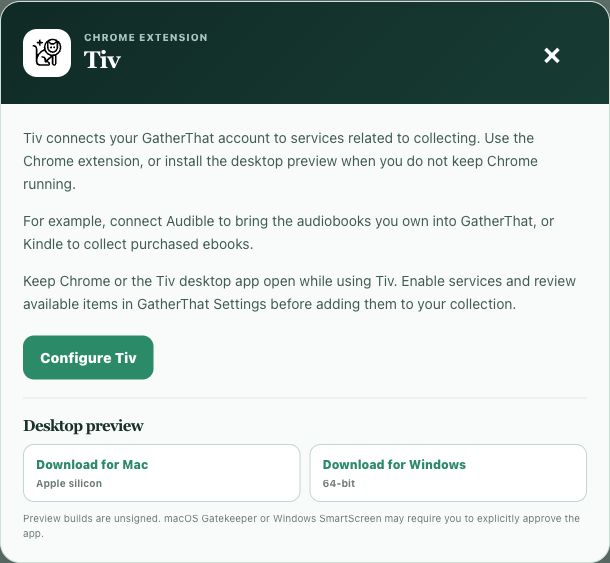
Launch Tiv from the GatherThat workspace to configure the extension or find the desktop apps.
Two ways to use Tiv
Use Chrome. Or keep the browser you love.
Chrome extension
A collecting companion in your browser.
Install Tiv in Chrome and connect it to your GatherThat account. Sign in to a supported service, enable its connector in Tiv settings, and let Tiv read the items available from that signed-in session.
Keep Chrome open while using Tiv. Open the extension for connection status and Sync Now, or manage your enabled services from GatherThat Settings.
Prefer Safari, Firefox, or another browser? The Tiv desktop app provides its own Chrome-compatible browsing environment. Keep your everyday browser, and use Tiv to connect GatherThat with supported services.
The desktop app captures Kindle and Audible libraries and supports Goodreads books, reviews, and reading history. Sign in to each service inside Tiv; the desktop app keeps its own sessions.
Tiv’s Chrome extension currently supports the sites below. We’re continually growing the list of supported sites so more of your collecting life can come together in GatherThat.
Bring purchased Kindle ebooks into GatherThat from your signed-in library. Kindle Unlimited and other borrowed titles are excluded from the owned-book workflow.
Review audiobooks from your Audible library and add the titles you choose, with available details such as narrator, duration, cover, and listening progress.
Review books from your signed-in subscription shop account at thebrokenbindingsub.com. Confirm received books for your library and keep outstanding purchases in order tracking. Multi-book purchases can be reviewed volume by volume.
Bring book purchases from shop.suntup.press into the same review workflow. Confirm arrivals, track preorders, and review edition and set details before importing. Cancelled orders and non-book merchandise are excluded.
Review your books and available personal ratings, reviews, reading dates, and current-year challenge information from your own My Books page. Reviews arrive privately, and existing GatherThat edits are preserved. Nothing is posted back to Goodreads.
Review books, reading status, ratings, and reviews available through your signed-in Fable web experience. Available details depend on what the site exposes.
The Chrome extension supports all eight connections. The desktop app supports Kindle, Audible, and Goodreads. Each site exposes different details, and sign-in is required.
Review once. Keep the useful choices.
Your import, your destination, your pace.
01
Choose what belongs
Review the available items, choose a matching collection or type library, and add tags for all imports, a source, or an individual item. Import one item or a selection, and ignore items you do not want.
02
Return to an unfinished review
Use Returned to Saved Sync to continue a saved review in the same browser and account. Tiv remembers supported import choices so you can pick up where you left off.
03
Keep purchases separate from arrivals
For The Broken Binding and Suntup, confirm receipt before adding books to your library. Outstanding purchases stay in order tracking; review multi-volume sets and choose the matching books before import.
Help shape Tiv
Want to see another source in Tiv?
Tell us which service you use and what you’d like to bring into GatherThat. Suggest a source through Feature Requests, where other collectors can vote and follow updates.
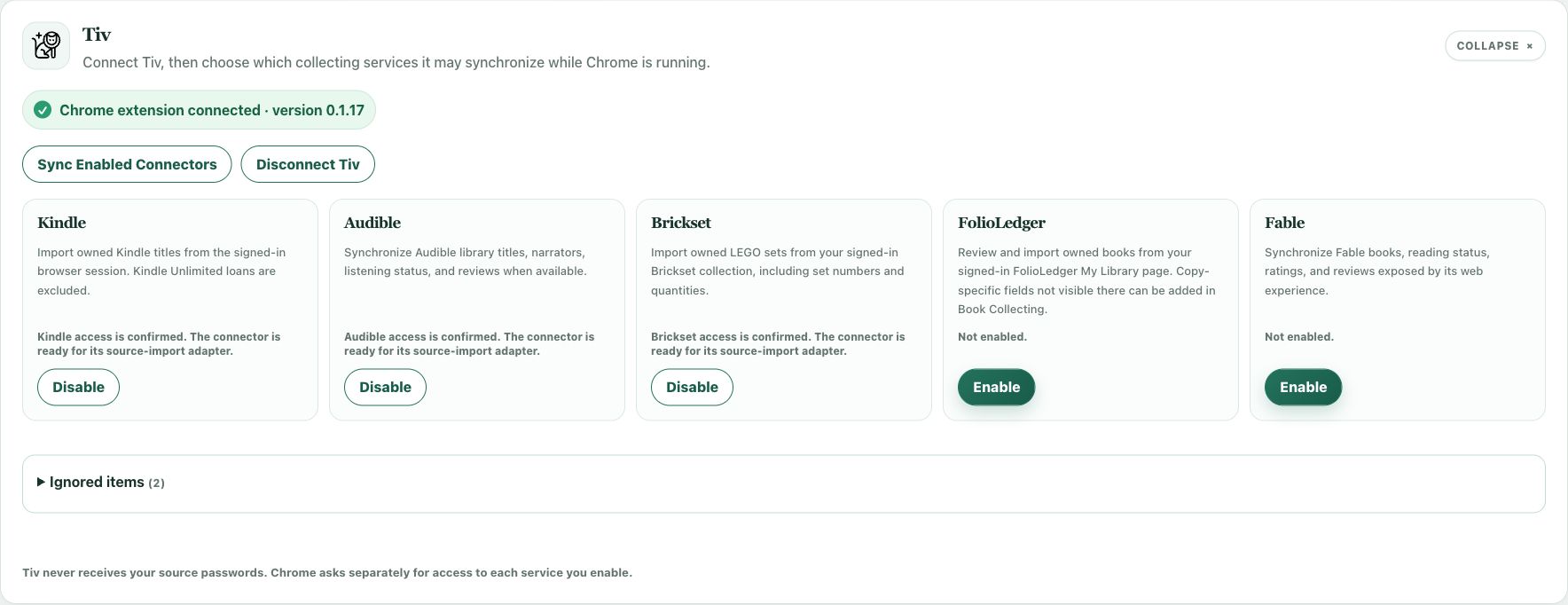
Open GatherThat Settings and expand Tiv. Check that the extension or desktop app is connected, enable the services you want, and approve access for each one. You can disable a connector or disconnect Tiv whenever you choose.
The actual Tiv settings panel: individual service controls, connection status, and ignored items.
Open Tiv. Choose Tiv in the GatherThat workspace, then install or configure the Chrome extension—or open the desktop app.
Choose your services. Enable each connector in Settings and sign in to the service in Chrome or its Tiv desktop window.
Check what is available. Keep the appropriate library page open and use Sync Enabled Connectors to prepare the supported review lists.
Decide what belongs. Review the results, select the items you want, and use the available collection and tag controls before adding them.
You sign in directly with each service. Tiv does not ask for or collect your source passwords. Connection checks can run while Chrome or the desktop app is open; adding items remains a review-and-select step.