
Know what you own
Find the details.
Search your inventory, inspect an item, review collection details, and ask questions grounded in your GatherThat records.

GatherThat + your AI agent
Bring GatherThat into the AI agent you already use. Find an item, explore your collections, plan your next find, and use supported GatherThat features without leaving the conversation.
GatherThat’s integrated MCP server connects a compatible agent to your account. You choose what it can do.
More than a collection lookup
Let your agent discover the features available to your account, then tell it what you want to do.
Know what you own
Search your inventory, inspect an item, review collection details, and ask questions grounded in your GatherThat records.
Keep things organized
Use supported tools to manage items, wishlists, journals, and collection workflows—with your permission to make changes.
Follow your curiosity
Ask your agent to use available Athena and Spot features for collecting research and discovery. Requests that use GatherThat AI draw on your usual allowance.
Stay connected
Work with supported groups, messaging, and sharing features. Your memberships, subscriptions, and account permissions still apply.
Available tools depend on your account, the features enabled in GatherThat, and your connection’s access level. Some tasks, including connecting external provider accounts, still take place in the GatherThat interface.
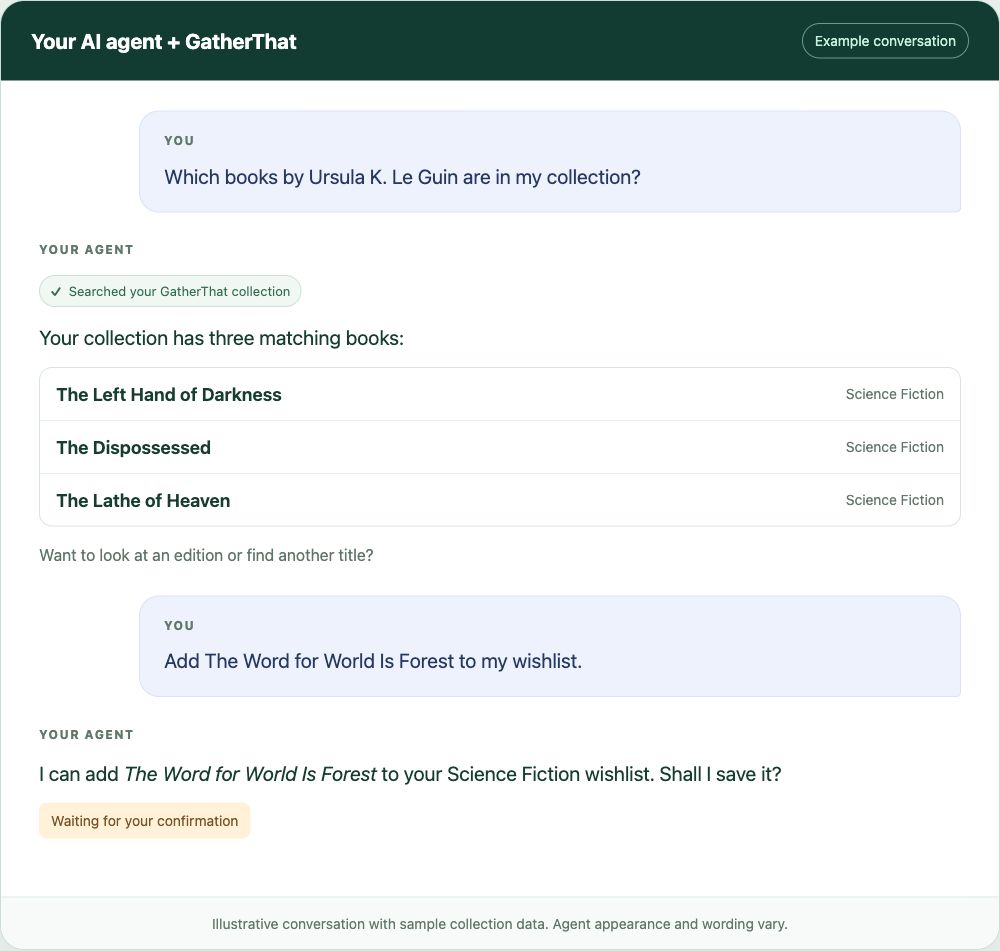
A conversation with your collection
You do not need to remember a tool name. Start with the collecting question or task in front of you.
This example uses sample collection data. It shows an inventory lookup followed by a proposed wishlist change awaiting confirmation; it is not a transcript from a specific AI service.
Get connected
Sign in to GatherThat, open Settings, and expand Connect your AI agent in Global Settings.
Select Codex, Claude Code, Claude Desktop, Cursor, or Other MCP agent. Give the connection a name you will recognize later.
Choose Read only for lookups or Read and make changes for supported actions. Select 30 days, 90 days, or 1 year.
Review the consent checkbox, then select Generate setup prompt. This creates a private application key and includes it in the prompt.
Select Copy setup prompt and paste it into your chosen agent. Follow its connection steps. Some clients will ask you to enter the connection details in their settings.
Try: “Connect to GatherThat, show me the features available to my account, and list my collection types.” Start with a lookup before requesting a change.
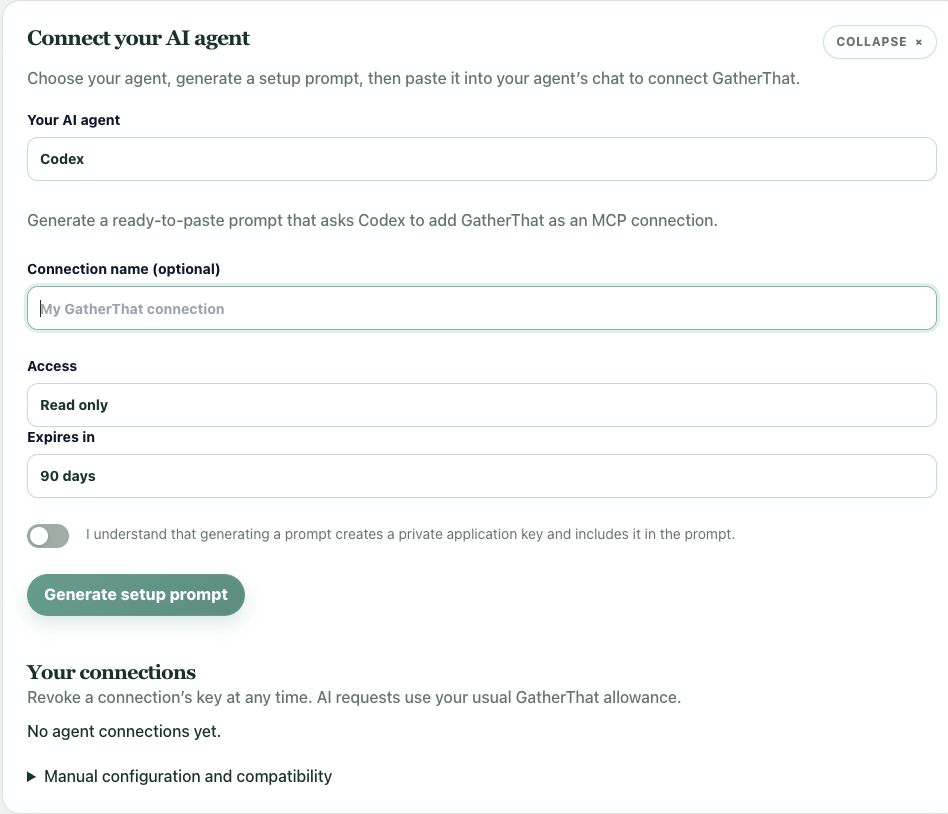
Keep the generated prompt private. It contains your application key and is shown once. Share it only with the agent you intend to connect.
Choose a compatible agent
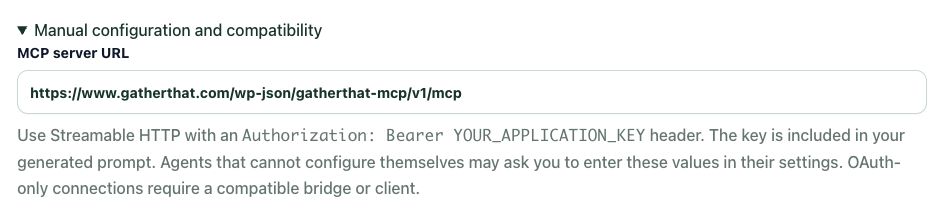
Compatible MCP clients can connect using Streamable HTTP and an Authorization: Bearer header. The agent picker prepares a setup prompt for that route; your client must support it.
GatherThat also provides ChatGPT account linking through OAuth for compatible custom app connections. Sign in to GatherThat and approve the access shown on the consent screen. This is a custom connection; availability depends on your ChatGPT account and client. A public app-directory listing is separate.
https://www.gatherthat.com/wp-json/gatherthat-mcp/v1/mcpFor manual Bearer setup, expand Manual configuration and compatibility in Settings. Use the application key rather than your GatherThat password. Review or revoke linked connections in GatherThat Settings.
You stay in control
A Read only connection can look up available data but cannot make changes or invoke paid GatherThat AI actions. A Read and make changes connection can use supported actions within your permissions. Changes require confirmation, and your setup prompt tells the agent to ask before changing data, sending messages, sharing, deleting, or spending AI allowances.
No. The connection acts as your GatherThat account. Existing ownership, group membership, role, and subscription restrictions still apply; it does not grant administrator access.
Return to Connect your AI agent in Settings. Under Your connections, select Revoke beside the connection you want to remove. Keys also expire on the schedule you choose. If a key is lost or exposed, revoke it and generate a new setup prompt.
Requests that use GatherThat AI count toward your usual GatherThat allowance. Your agent provider’s own terms and usage limits also apply. Ask your agent to discover your available features first. If application access is disabled for your account, contact GatherThat support.
Another way into your collecting life