
Tabs give every detail a home
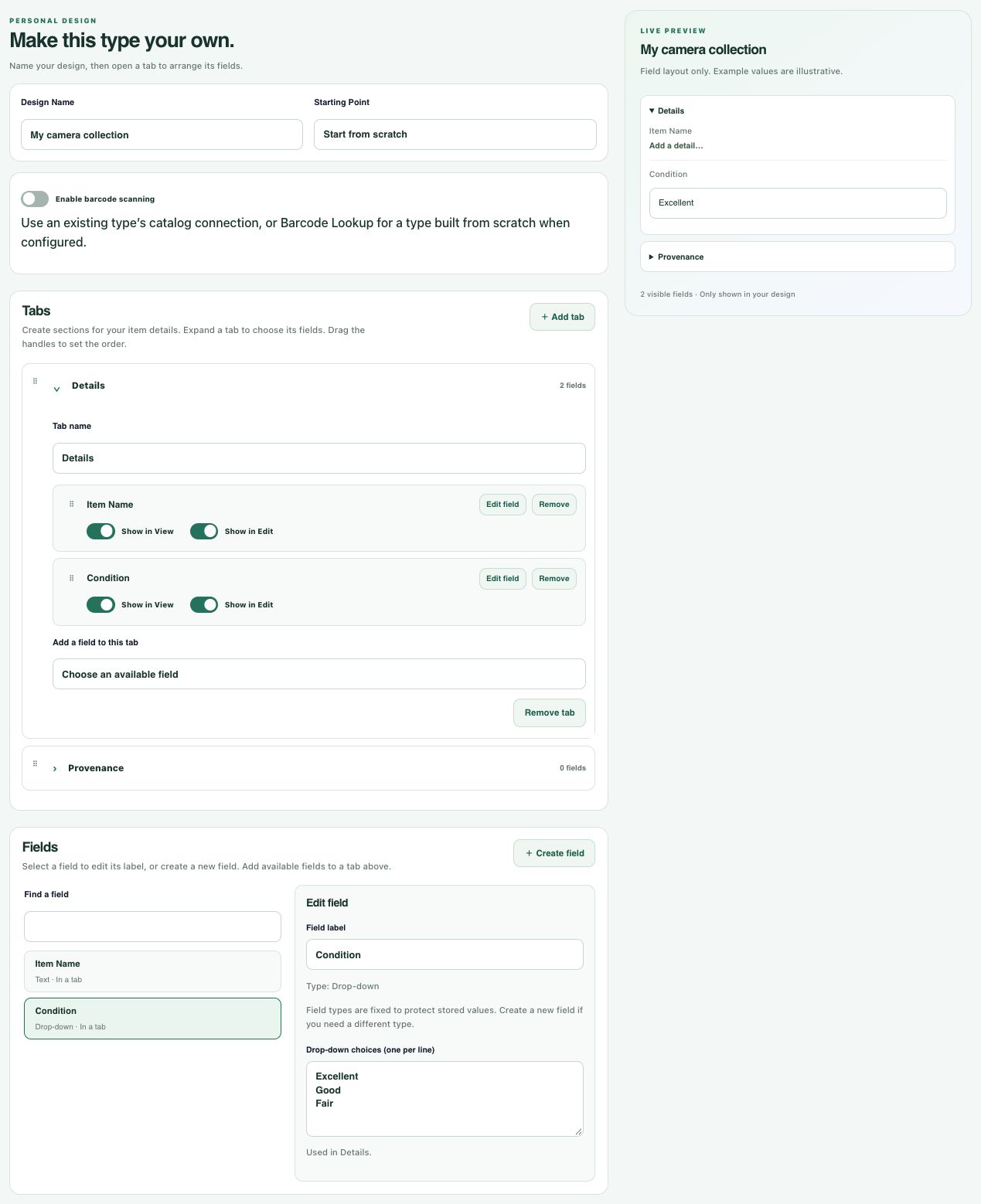
Create named sections such as Details, Condition, or Provenance. Expand a tab to choose the fields it contains, then drag the handles to reorder tabs and the fields inside them.

Collection Studio
Shape a personal design or a reusable template with one clear workflow. Create your fields, place them in named tabs, drag everything into order, and watch your item record take shape in the live preview.
Why it matters
Personal designs let you adapt an existing collection type or start from scratch. Keep your own labels and custom details, organize them into tabs, and control which fields appear when viewing or editing an item.
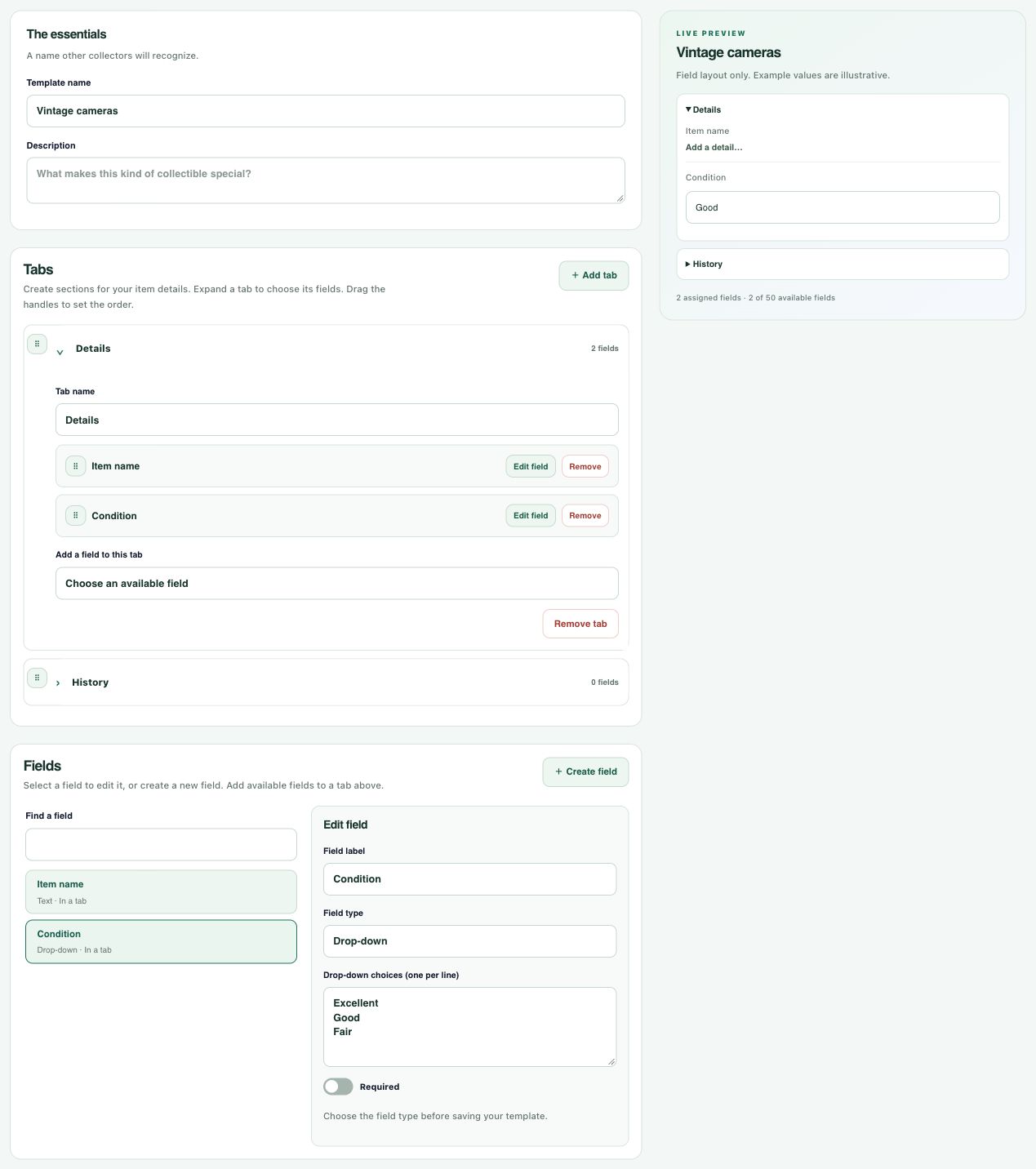
Reusable templates give a collecting category a structure you can use again or share. Both builders separate the field library from the tab layout, with drag-and-drop ordering and a live preview beside your work.
What it brings together
Create named sections such as Details, Condition, or Provenance. Expand a tab to choose the fields it contains, then drag the handles to reorder tabs and the fields inside them.
Search the available fields, select one to edit, or create a detail of your own. Removing a field from a tab keeps it available in the library, ready to place somewhere else.
The live preview stays on the right as you build. It follows tab names, field labels, ordering, and drop-down choices so you can see the record before saving.
Create a drop-down and enter its choices one per line. Both builders also support text, long notes, numbers, dates, yes/no values, and website URLs; reusable templates can include image URLs too.
Start from scratch or customize an existing GatherThat type. Personal designs let you choose what appears in View and Edit. Reusable templates support up to 50 field definitions and required fields.
Enable mobile barcode scanning for a personal design or template. Keep its inherited lookup connection and set default tag names; private template copies create each collector’s own tags.
Give a reusable template an image, save it privately, or share a version in the Template Library. Other collectors adopt an independent private copy; sharing a template does not share your collection items.
In practice
A closer look
The reusable template builder uses the same Tabs and Fields organization as personal designs. Create your field library, assign fields to tabs, drag them into order, and check the live preview. Saved versions and private copies retain the layout. Existing collections keep their chosen version until you apply a compatible upgrade.
Make room for the details that matter.